Item and Data Asset Setup
1. Create the Database
In the Content Browser, create a Data Asset of class PDA_ItemDatabase. A food database can use InventoryKey = Food
and TargetInventoryTag = Cube_Inventory.Target.Character.Inventory.
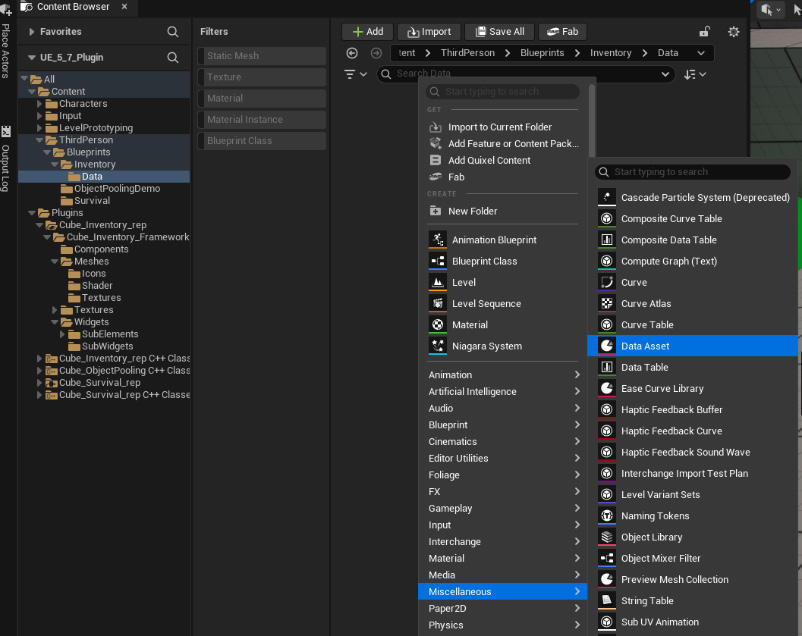
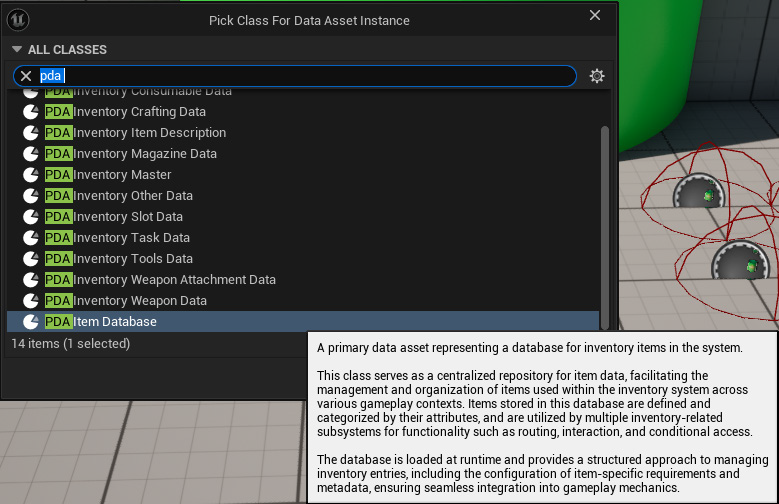
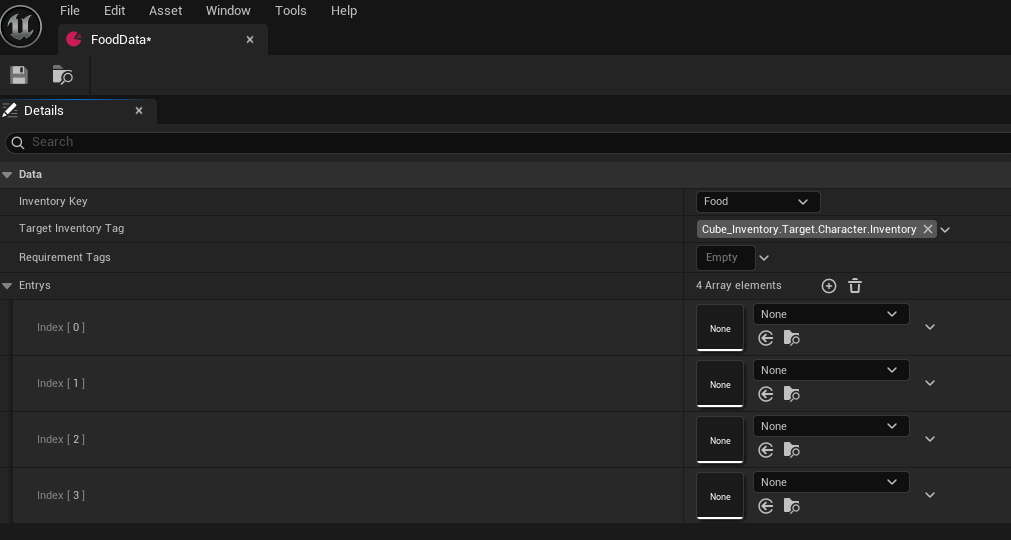
InventoryKey categorizes the database. TargetInventoryTag selects the default route for AddAmount/RemoveAmount.
RequirementTags is declared metadata; the current manager does not enforce it. Entrys is the exact source spelling
of the hard-reference array of item masters.
2. Create an Item Master
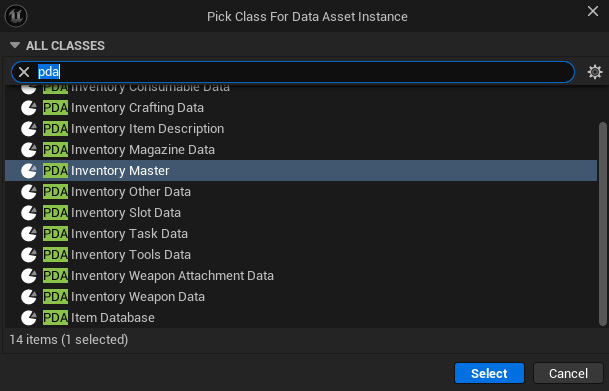
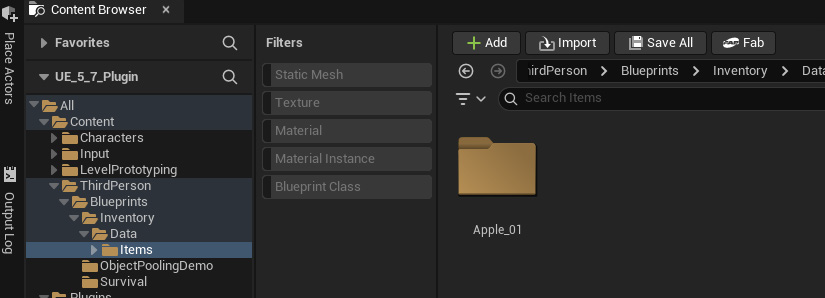
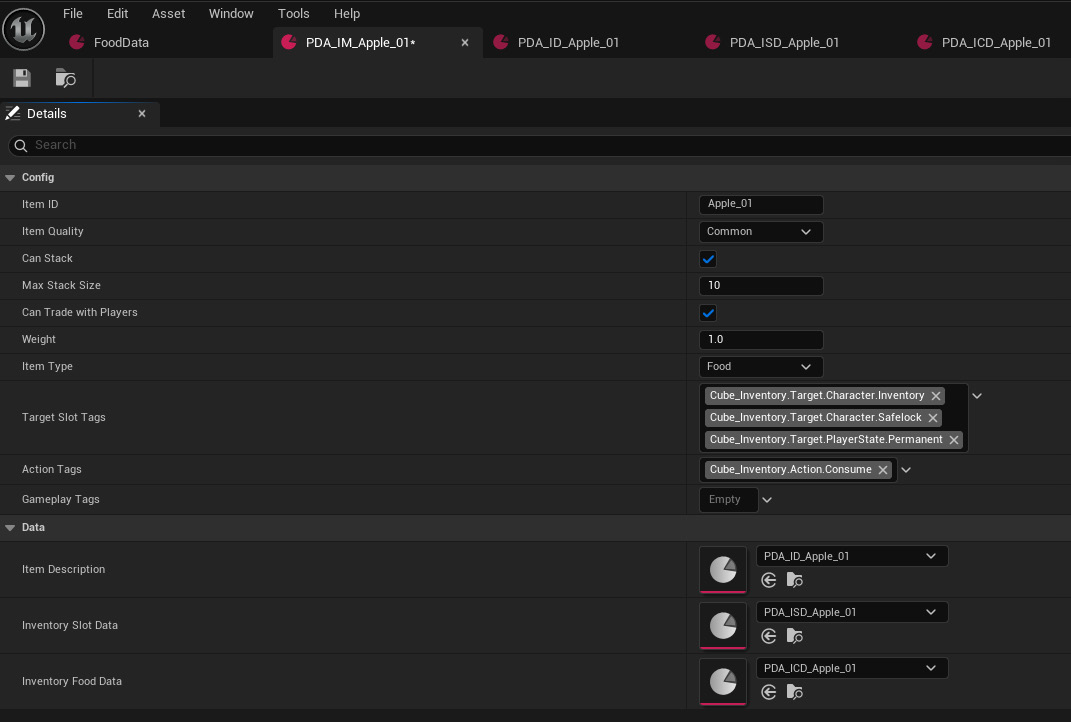
Select PDA_InventoryMaster. The PDF's PDA_ItemMaster wording refers to this class; no native class named PDA_ItemMaster exists in this source.
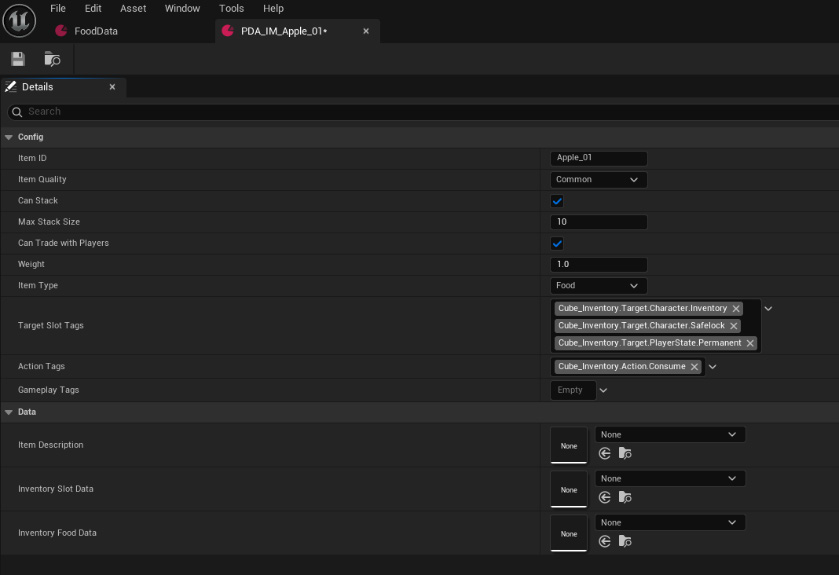
| Field | How to configure it |
|---|---|
ItemID | Unique non-None Name across all configured databases |
ItemQuality | Item quality metadata |
bCanStack | UI stack acceptance metadata; native systemic add uses MaxStackSize |
MaxStackSize | Positive stack limit; use 1 for nonstacking items |
bCanTradeWithPlayers | Metadata for your trade rules |
Weight | Weight per item; there is no bUseWeight or ItemWeight property |
ItemType | Selects typed data and UI map lookups |
TargetSlotTags | Tags available to UI target compatibility checks |
ActionTags | Declares actions; does not implement consume/equip behavior |
GameplayTags | Additional payload/project metadata |
Set compatible exact target tags in TargetSlotTags. The UI combines TargetSlotTags, ActionTags and GameplayTags into
the payload tag container. This is a presentation check, not authoritative access control. Server-side add/remove does
not automatically enforce these item tags.
3. Add a Description
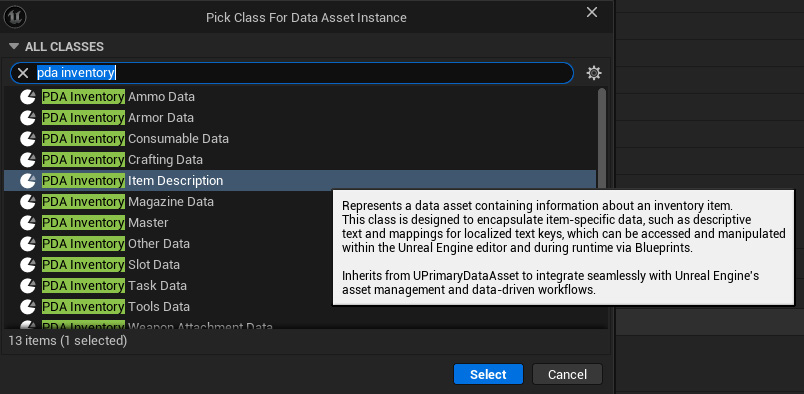
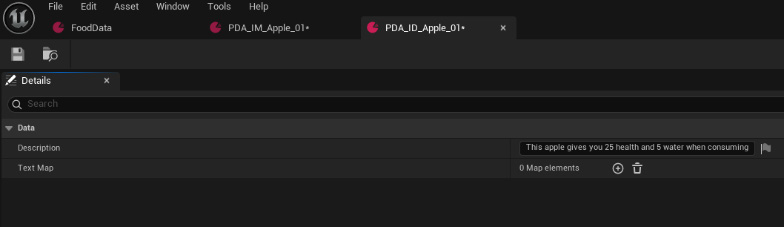
Create PDA_InventoryItemDescription, fill Description and optionally TextMap, then assign it to the master's soft
ItemDescription reference. The native tooltip loads this asset when needed.
4. Add Slot Presentation Data
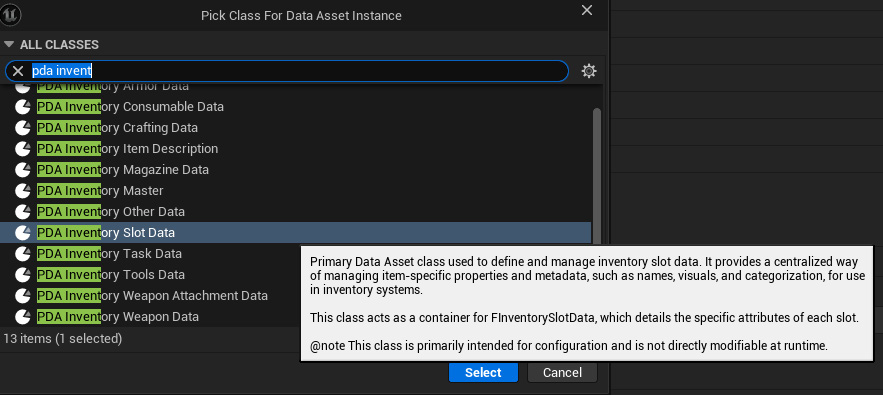
Create PDA_InventorySlotData. Fill SlotData.ItemName, Icon and Usability, then assign it to InventorySlotData
on the master. The class implements I_InventoryEntryListener::GetSlotData.
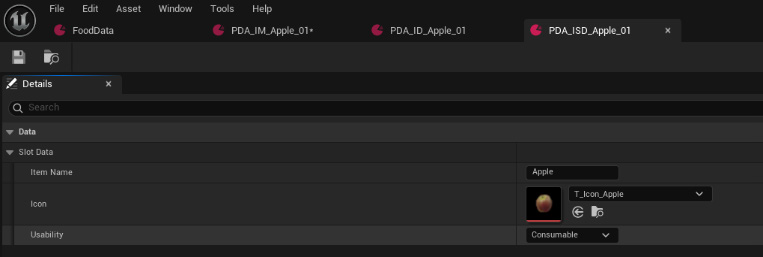
Usability is metadata. Selecting Consumable or Equipable does not perform an inventory mutation or
apply a gameplay effect.
5. Add Typed Data
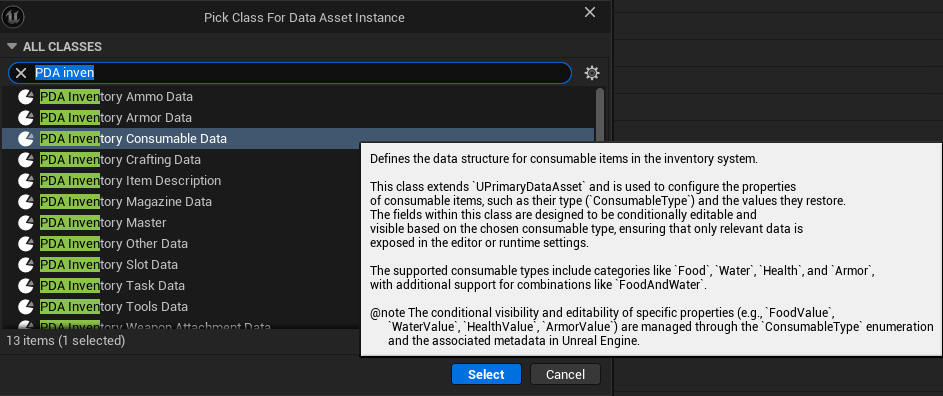
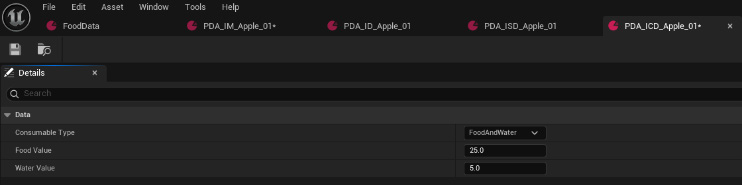
Food and Medical masters use PDA_InventoryConsumableData: choose ConsumableType and its FoodValue, WaterValue,
HealthValue or ArmorValue. Assign the asset to InventoryFoodData or InventoryMedicalData as appropriate.
Other typed references cover Weapon, WeaponAttachments, Ammo, Magazine, Crafting, Tools, Armor, Tasks and Other.
Some classes are currently empty extension containers. See Data Assets and Header Reference for
actual fields.
6. Register the Item
Assign the description, slot and typed assets to the master. Add the master to the database's Entrys, then add the
database to Project Settings DatabaseArray. Creating an asset alone does not make GetItemByID resolve it.

The database array is soft-loaded, but its Entrys references are hard. Loading a database therefore also loads its
referenced masters; nested soft UI/typed assets remain separate. Do not store mutable per-stack state in shared
definition assets.